


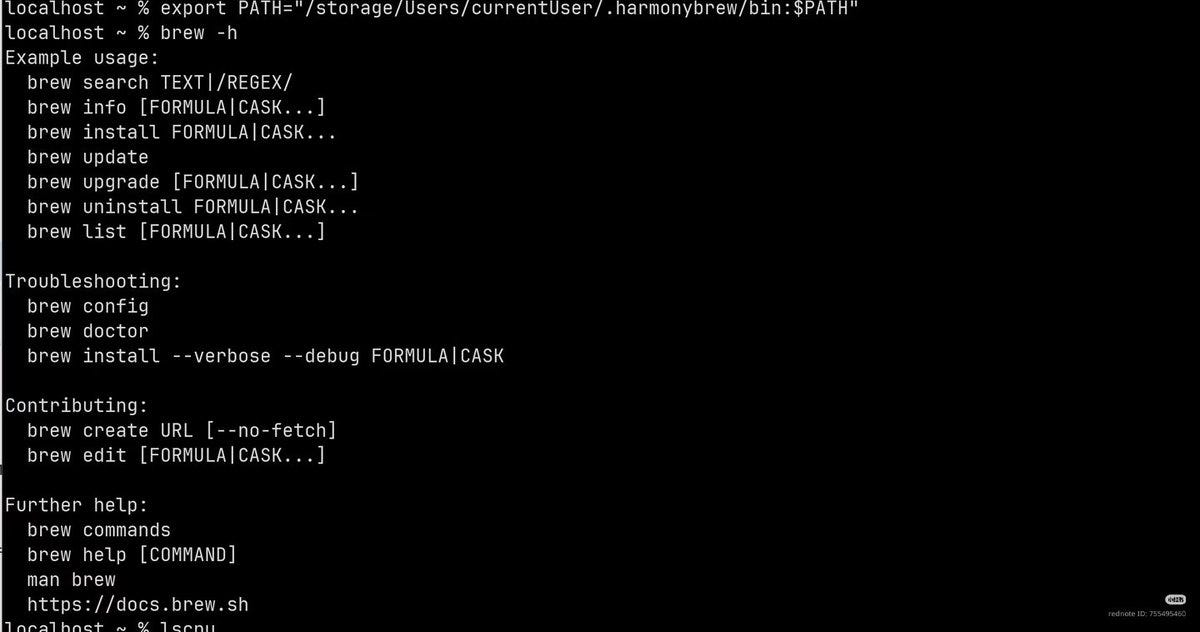
Developing on HarmonyOS or OpenHarmony has historically forced a massive compromise. While the system’s native HongMeng Kernel provides slick execution for front-end apps, the command-line ecosystem lacked a unified way to handle backend software. Installing developer essentials, text editors, or database engines often required messy, manual toolchain setups.
That bottleneck is officially gone. Harmonybrew has launched as an open-source, 3rd-party port of macOS’s iconic Homebrew package manager. It is built specifically to download, manage, and execute headless software on HarmonyOS hardware.
What is Headless Software, and Why Do We Need It?
Headless software refers to utilities, daemons, and application binaries that run entirely in the background without a Graphical User Interface (GUI). In a standard developer ecosystem, you use these tools constantly:
Background Security Engines: Tools like
opensslfor handling encrypted handshakes.Command Line Text Editors: Lightweight text environments like
nanoorvimfor editing configurations.Database Cores: Micro-instances of SQL storage engines like
sqlite.
Because HarmonyOS lacks a traditional terminal-based software store, installing these packages meant manually compiling raw source code against Huawei’s toolchains. Harmonybrew strips that friction away entirely.
Enter Harmonybrew: Homebrew, Reimagined
Harmonybrew clones the workflow of Homebrew. It handles dependency resolution, downloads source packages, and compiles them so they run natively on the HarmonyOS architecture.
60% Native Formula Compatibility: Harmonybrew is built to naturally adapt existing Homebrew scripts, making it immediately compatible with a massive library of developer dependencies.
2,000+ Available Packages: The centralized repository already includes thousands of headless developer utilities, operational scripts, and compilation tools.
Cross-Device Agnostic: It works uniformly whether you are targeting a HarmonyOS PC environment, an open-source development board, or a sandbox container system.
Step-by-Step: Setting Up Your Headless Environment
Ready to start deploying headless tools via your terminal? Follow this quick-start pipeline:
1. Clear Conflicting Systems
If your device is running early emulation packages like GitNext or DevBox, uninstall them to avoid environmental path overlap and installation errors.
2. Elevate System Permissions
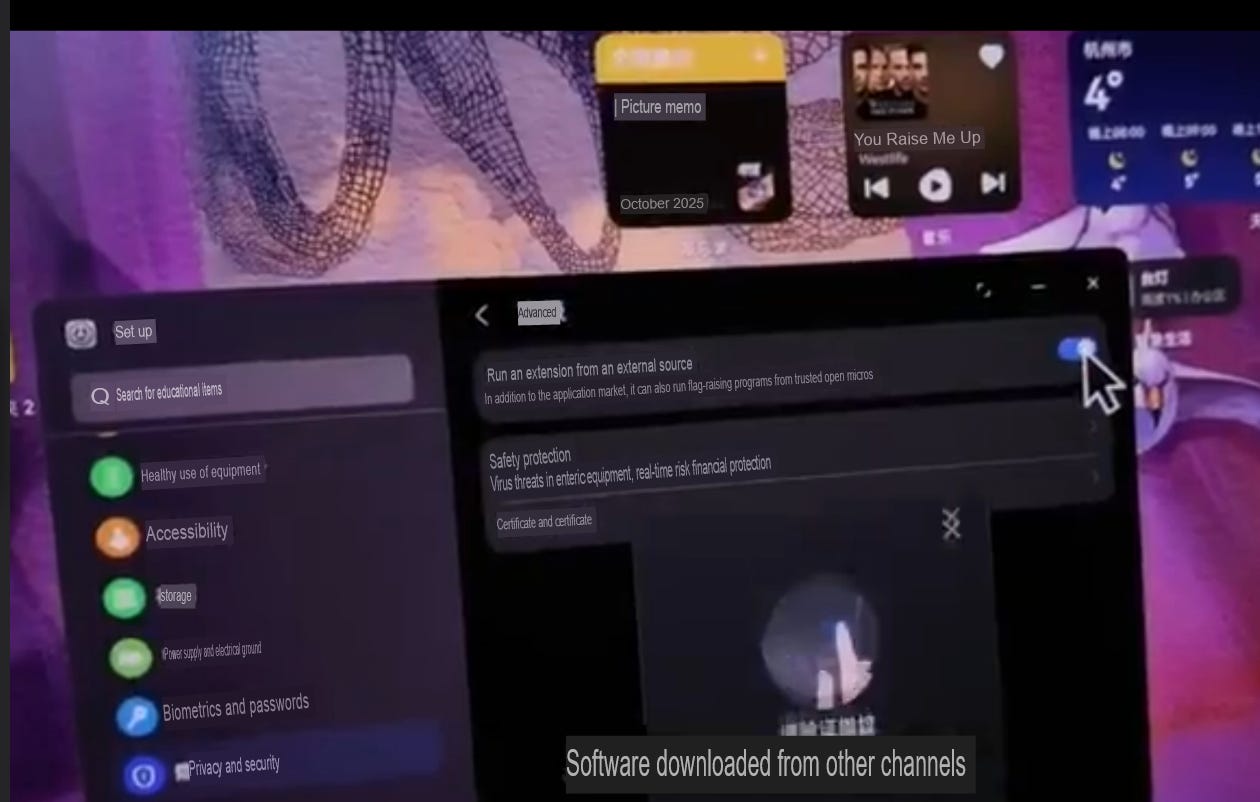
To allow Harmonybrew to provision system binaries, unlock the local kernel permissions:
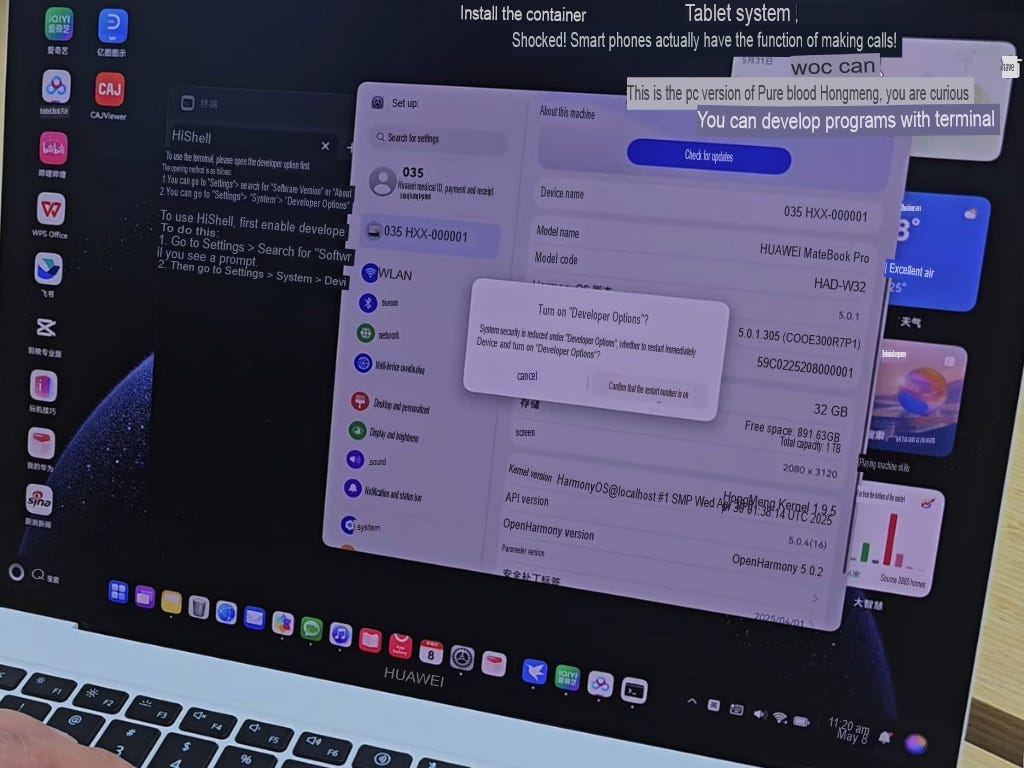
Open Settings → Your Device e.g. ‘LIH’s MateBook Pro’ for About page → tap on software version to activated Turn on ”Developer Options” dialog prompt.
Open Settings → Privacy and Security → Advanced and toggle on “Run extensions from non-app markets”.
3. One-Click Automated Deployment
Open your terminal (or the integrated terminal window inside Huawei DevEco Studio) and run the native installation script:
bash
zsh -c "$(curl -fsSL https://harmonybrew.atomgit.com/install.sh)"
Use code with caution.
4. Configure Environment Variables
Once the installer finishes, write the binary path to your configuration profile to execute commands globally:
bash
echo 'eval "$(/storage/Users/currentUser/.harmonybrew/bin/brew shellenv)"' >> ~/.zshrc
source ~/.zshrc
Use code with caution.
Running Your First Headless Tool
With your terminal configured, you bypass all app stores. Downloading and managing headless tools becomes as simple as typing a singular string:
bash
# Pull down the latest package formulas from the community repository
brew update

# Fetch and auto-compile a headless background utility
brew install <package-name>